
Once the script has completed, you are left with a finished kaleidoscope. Well maybe! The finished image can be processed in Photoshop just like any other image. What’s possible is limited only by your level of Photoshop expertise and imagination! For those who wish to develop their Photoshop skills, try the free Photoshop Online Course.
It would be impossible to describe all the possible ways in which you might approach the final processing of a kaleidoscopic image. What follows are just a few possibilities along with some images which have been altered significantly after the kaleidoscope has been produced. All of them are composites of 2 or more kaleidoscopes and all had colour and tonal adjustments.
Altering Colour and Tone
I do this using adjustment layers as this gives a much greater degree of control. Rarely would I alter colour and tone across the whole image. Instead, I will select areas of similar colour or areas of similar tone such as Highlights or Shadows. The Color Range tool is my go-to tool for simpler selections and this usually works very well with kaleidoscopic images.
Experimenting with Blend Modes
You can try duplicating the composite layer and changing its blend mode and/or opacity. There’s no guaranteed success and different modes will work only with certain images. You can also change the blend modes in the mirror layers with KaleidoSquare.
Using Filters
The filters menu offers a whole range of possibilities. My favourites include, Radial Blur, Pinch/Punch, Spherize, Wave, Twirl and Oil Paint. I will always apply these filters to a duplicate layer. In some cases I will try different blending modes or I will use layer masks to ‘hide’ areas of the overlaid layers.
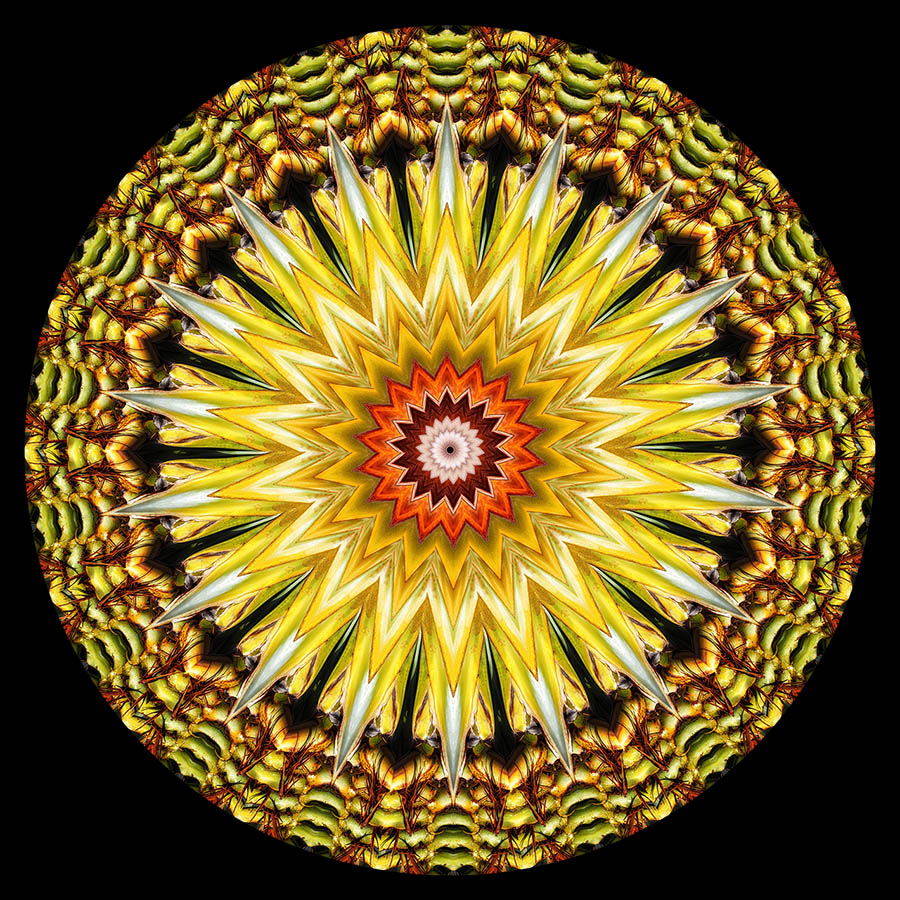
Zap! Pow! Kerboom!
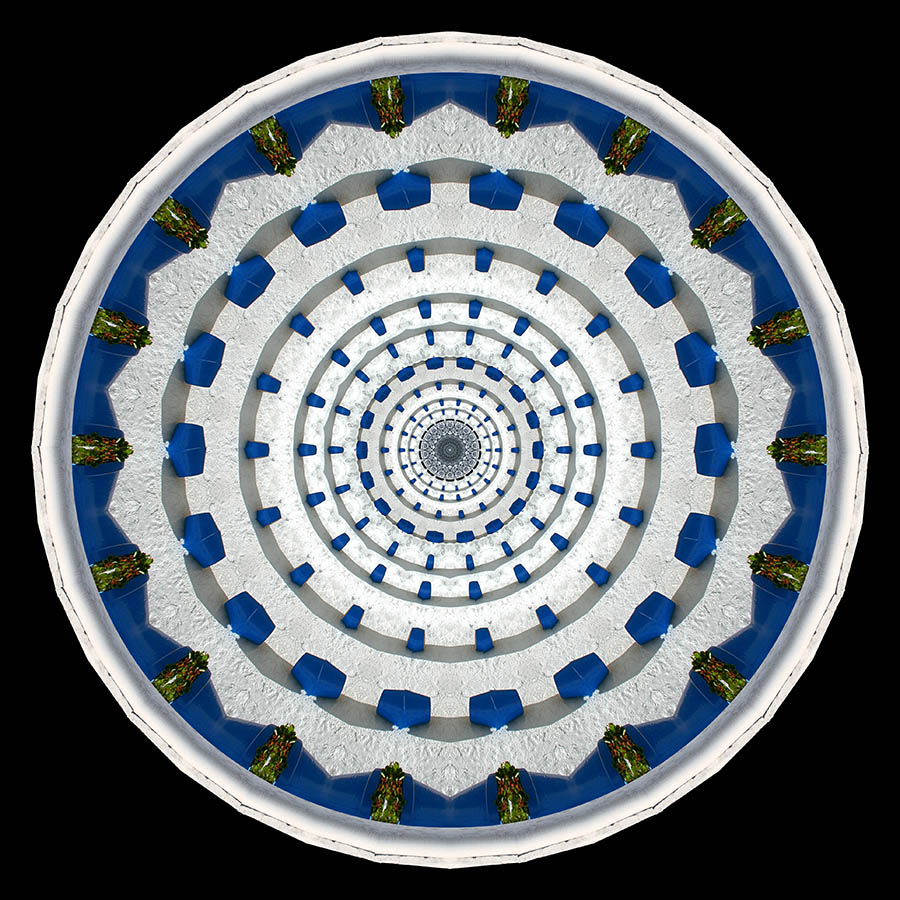
Coliseum
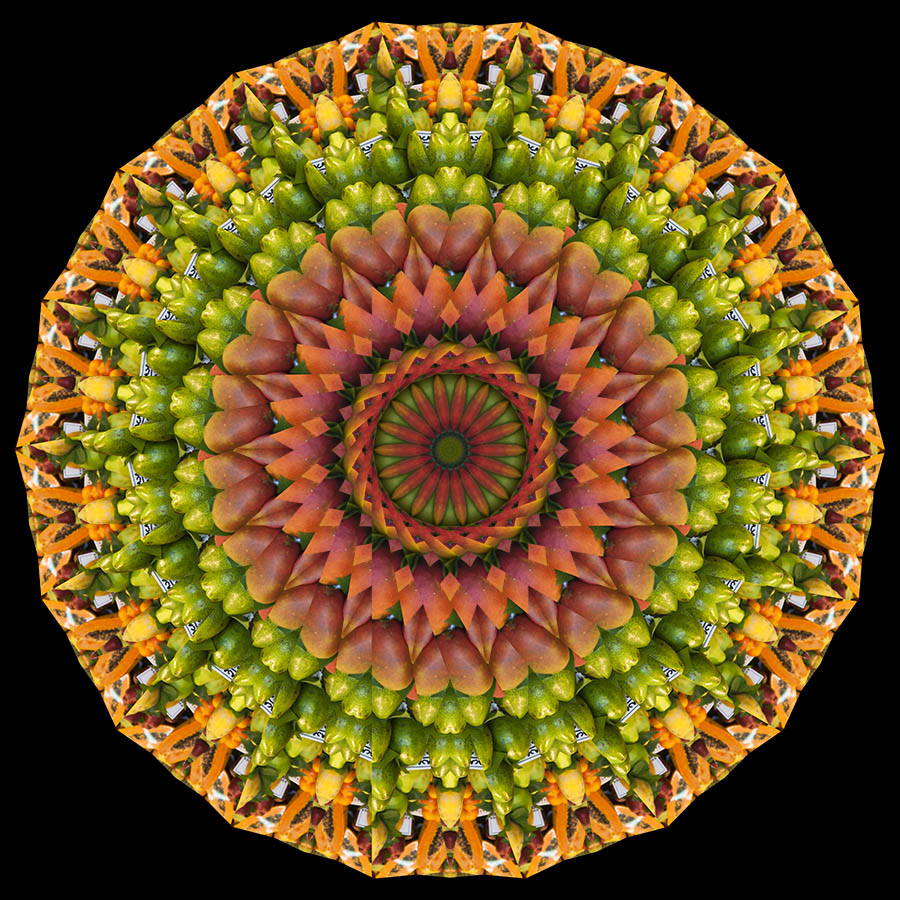
La Boqueria
Combining Kaleidoscopes
Often you will be happy with PART of the kaleidoscope. For example, the centre might be great but the rest isn’t or vice versa. So long as the colour scheme is compatible, it’s relatively easy to use the centre (or any other area) from one image and overlay that in another. I find that centred, circular masks of different sizes are often best as they preserve the integrity of the kaleidoscope in terms of its symmetry. The Flipped Symmetry function is particularly useful for creating kaleidoscopes which will merge easily with other kaleidoscopes.
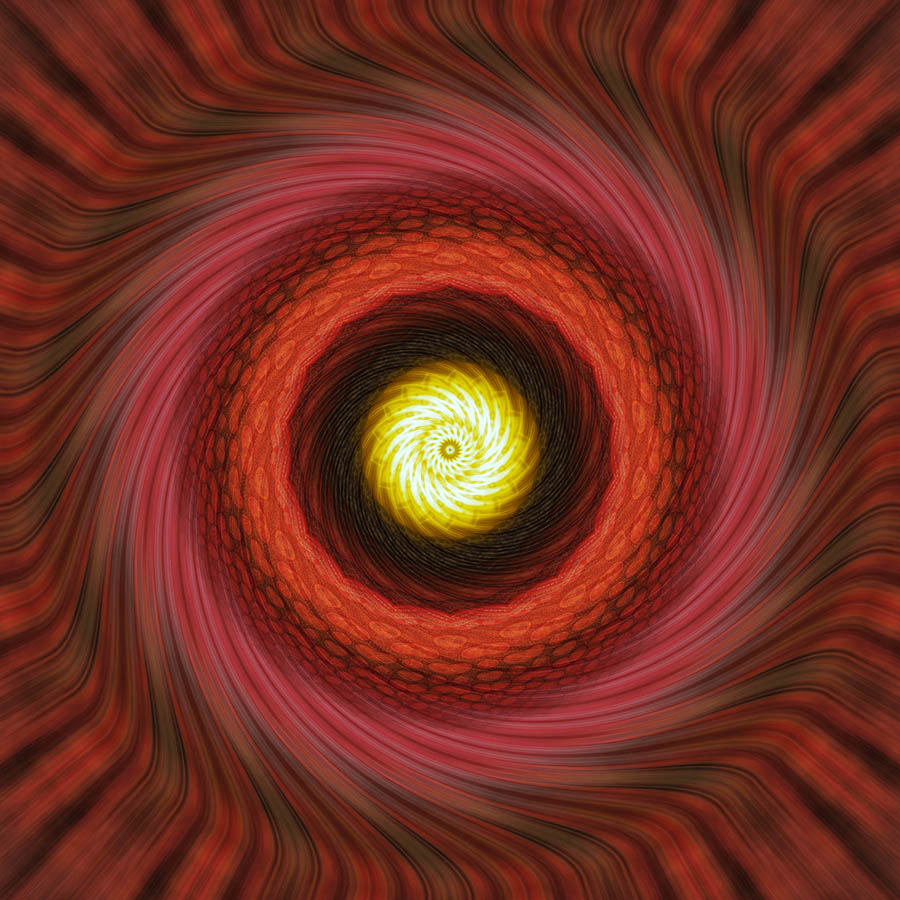
Vortex
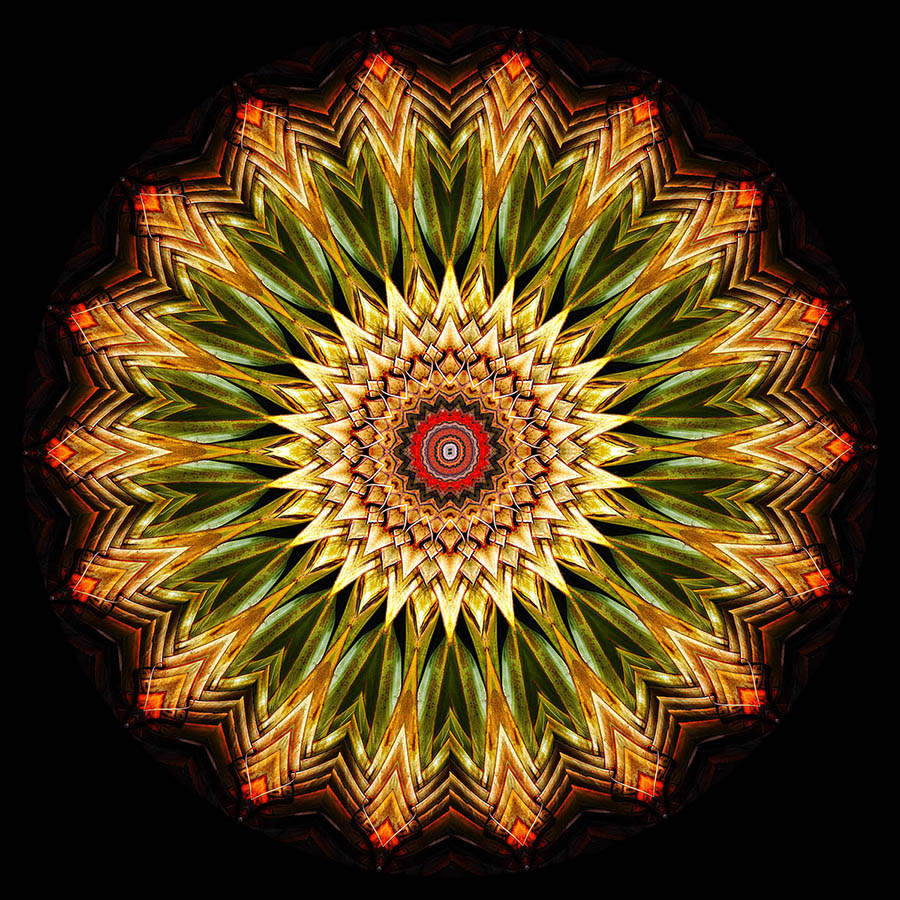
Pineapple
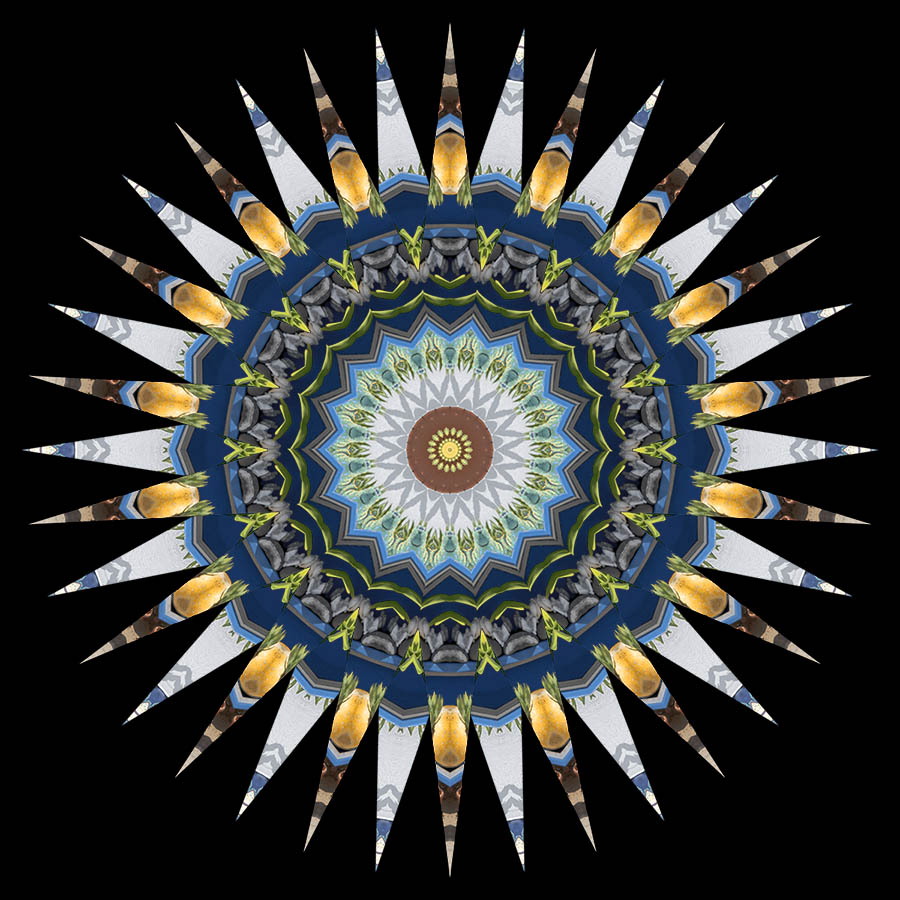
Star